Building My First Chrome Extension: A Journey into Browser Development
From idea to Chrome Web Store submission in a weekend. Learn how I built SEO Peek, a Chrome extension for analyzing webpage SEO, using just HTML, CSS, and JavaScript.
I just submitted my first Chrome extension to the Web Store, and it's now live! The whole experience was surprisingly straightforward, and I want to share why building a Chrome extension might be the perfect weekend project you didn't know you needed.
Try it now: SEO Peek on Chrome Web Store
Why I Built SEO Peek
As someone who works with websites regularly, I found myself constantly opening browser DevTools, inspecting elements, and manually checking SEO fundamentals. Title tags, meta descriptions, heading structures, image alt text - the routine was repetitive and time-consuming. I thought, "There has to be a better way."
That's when I decided to build SEO Peek, a Chrome extension that analyzes any webpage's SEO with a single click. No more digging through source code or running multiple tools. Just click the extension icon and get instant insights.
The Surprising Simplicity of Chrome Extensions
Here's what shocked me most: Chrome extensions are just HTML, CSS, and JavaScript. That's it. If you've built a website, you already have 90% of the skills needed.
The basic structure is incredibly simple:
- A
manifest.jsonfile that tells Chrome what your extension does - HTML files for your user interface
- CSS for styling
- JavaScript for functionality
- Some PNG icons
No complex build processes, no framework requirements, no server setup. It's pure front-end development. For someone like me who appreciates simplicity, this was refreshing.
Starting with Manifest V3
Chrome extensions use something called a "manifest" file. Think of it as the blueprint that tells Chrome everything about your extension - what it's called, what permissions it needs, and what files to load.
I started with Manifest V3, which is Chrome's latest standard. The learning curve was minimal. My entire manifest file is about 25 lines of JSON. It specifies that my extension needs permission to read the active tab (to analyze the page) and execute scripts (to extract SEO data).
The beauty of modern Chrome extensions is the security model. Users are in control. My extension only runs when they click the icon, and it only accesses the page they're currently viewing. No sneaky background tracking, no data collection.
Building the Analysis Engine
The core functionality of SEO Peek involves reading a webpage's HTML and extracting SEO-relevant information. This meant writing JavaScript that could:
- Find and validate title tags
- Extract meta descriptions
- Count heading elements (H1, H2, etc.)
- Check images for alt text
- Identify Open Graph tags
- Detect schema markup
- Analyze link structures
The fascinating part? All of this happens using standard DOM manipulation. It's the same document.querySelector() and querySelectorAll() methods you'd use in any web development project.
I built a scoring system that evaluates pages on a 0-100 scale, checking for best practices like proper title length (50-60 characters), meta description optimization (150-160 characters), single H1 tags, and mobile-friendly meta tags.
Designing the Interface
User interface design for extensions has unique constraints. Your popup needs to be compact but informative, fast but comprehensive. I settled on a tabbed interface with three sections: Basics, Content, and Technical.
Initially, I went with a colorful gradient design with emoji icons - very modern, very "startup-y." But it felt unprofessional for a tool meant for SEO professionals and developers. So I redesigned everything with a clean, corporate aesthetic.
I integrated Font Awesome icons to replace the emojis and implemented a professional color palette: dark slate blues, clean whites, and strategic accent colors. The result looks like something you'd find in a premium SEO toolkit, not a weekend hobby project.
For the graphics and promotional materials, I used Canva. Creating the extension icons (16x16, 48x48, and 128x128 pixels) was straightforward. Canva's templates made it easy to maintain consistency across different sizes. For the Chrome Web Store screenshots, I tested the extension on well-optimized sites like Moz and Ahrefs, captured clean screenshots at 1280x800 resolution, and used Canva again to add subtle annotations highlighting key features.
The Technical Implementation
One challenge was making the extension work across all websites. Some sites have complex JavaScript frameworks, dynamic content, and various security measures. I needed to ensure my analysis script could handle everything from simple HTML pages to React applications.
The solution was keeping the content script minimal. It doesn't try to manipulate the page or inject anything permanent. It simply reads the DOM when requested, packages the data, and sends it back to the popup interface for display.
Performance was another consideration. Users don't want to wait for analysis. My extension typically completes its scan in under 100 milliseconds. The secret? Efficient DOM queries and avoiding unnecessary computations. I count what needs counting, extract what needs extracting, and present results immediately.
Preparing for Submission
Getting ready for Chrome Web Store submission was more administrative than technical. Here's what I needed:
- A clear single-purpose description
- Justifications for each permission requested
- Privacy policy details
- High-quality screenshots (I captured five different views)
- Promotional images (created in Canva)
- A detailed description of features
- A $5 one-time developer registration fee
The permission justifications were interesting. Chrome wants to know exactly why you need each permission. For my extension, I explained that activeTab lets me read the current page's HTML, and scripting allows me to execute the analysis code. The review team takes security seriously, which is reassuring as a user of other extensions.
What I Learned
Building this extension taught me several valuable lessons:
Extensions are accessible - You don't need to be a senior developer or know exotic frameworks. Basic web development skills are sufficient.
The documentation is excellent - Chrome's extension documentation is clear, comprehensive, and includes plenty of examples. When I got stuck, a quick search usually led me directly to the answer.
Testing is straightforward - Chrome's developer mode lets you load unpacked extensions instantly. Make a change, hit refresh, test immediately. The feedback loop is incredibly fast.
Design matters - Even for developer tools, aesthetics influence perception. My redesign from "playful" to "professional" completely changed how the extension felt.
Simplicity scales - Starting with a focused, single-purpose tool made development manageable. I could have added dozens more features, but keeping it focused on core SEO analysis made it better, not worse.
Why You Should Try This
If you're a developer looking for a portfolio project, learning experience, or just something fun to build, I highly recommend creating a Chrome extension. Here's why:
Low barrier to entry - If you know HTML, CSS, and JavaScript, you're ready to start. No new languages to learn, no complex toolchains to configure.
Real-world utility - Extensions solve actual problems. You're not building a todo app that nobody uses - you're creating tools people install and use daily.
Portfolio value - Having a published Chrome extension shows initiative, full-cycle development experience, and understanding of browser APIs. It's a conversation starter in interviews.
Instant distribution - Once approved, your extension has a real distribution path through the Chrome Web Store instead of living only as a local demo.
Fast development - My extension took about a weekend to build and another few hours to polish. That's a complete, published project in less time than many tutorials take.
The Waiting Game
My extension went through the Chrome Web Store review process, and after a few business days, it was approved! The review team was thorough but fair - they verified my permission justifications, checked the functionality, and ensured everything met their policies.
The approval email was one of those small victories that makes all the effort worthwhile. Seeing "SEO Peek" live in the Chrome Web Store, knowing that anyone in the world can now install and use it, is an incredible feeling.
Getting Started Yourself
If I've convinced you to try building an extension, here's my advice:
Start simple - Don't build a complex productivity suite. Start with something focused. A color picker, a word counter, a link checker - pick one problem and solve it well.
Use the official documentation - Chrome's extension docs are fantastic. Start there, not with random tutorials that might be outdated.
Test extensively - Try your extension on various websites. Edge cases will surprise you. Pages render differently, and JavaScript frameworks behave unexpectedly.
Focus on one browser first - Chrome extensions work in Edge, Brave, and Opera too, but start with Chrome. Get it working perfectly in one browser before worrying about compatibility.
Design matters - Even if you're "not a designer," spend time making your extension look polished. Use icon libraries like Font Awesome, choose a professional color palette, and test your UI on different screen sizes.
Get feedback - Before submitting, ask friends or colleagues to test your extension. Fresh eyes catch issues you've become blind to.
Final Thoughts
Building SEO Peek taught me that some of the best projects are the ones you build to solve your own problems. I wanted a quick way to check SEO fundamentals, so I built one. The fact that it might help others is a bonus.
Chrome extensions represent one of the most accessible forms of software development. The barrier to entry is low, the tools are free, the documentation is excellent, and the distribution platform is built-in. You can go from idea to published product in a weekend.
I built something, learned something, and created a tool I use regularly - and now others can too. That's the real value of side projects.
If you've been thinking about building a Chrome extension, stop thinking and start building. The worst that happens? You learn something new. The best that happens? You create something useful enough for other people to install.
Check out SEO Peek: Install from Chrome Web Store - And if you build your own extension inspired by this post, I'd love to hear about it.
FAQ
What is SEO Peek? SEO Peek is a Chrome extension I built to inspect basic on-page search engine optimization signals from the current browser tab, including titles, meta descriptions, headings, images, and other quick review items.
Why build a Chrome extension instead of another web app? A browser extension fits the workflow because the user is already looking at the page they want to review. That makes the tool faster for spot checks than copying URLs into a separate dashboard.
What does this project demonstrate? The project demonstrates JavaScript, Chrome extension architecture, Manifest V3 permissions, browser scripting, privacy-aware permission explanations, interface design, and full-cycle release work through the Chrome Web Store.
Related Reading
SEO Peek connects directly to my later work on Google Search Console indexing cleanup and portfolio blog syndication. You can also see the rest of my project work on the projects page.
Share this article

Ryan VerWey
Full-stack developer, Army veteran, and founder of Echo Effect LLC. His experience timeline documents current Ratespedia CTO work, Department of War contractor work, and prior Army service. More about Ryan or see the work.
Recommended Reading
IONOS: Three Months, Two Websites, and a Cancellation That Wouldn't End
Read my IONOS cancellation experience, including months of support issues, reversed cancellation requests, and lessons for small business hosting.
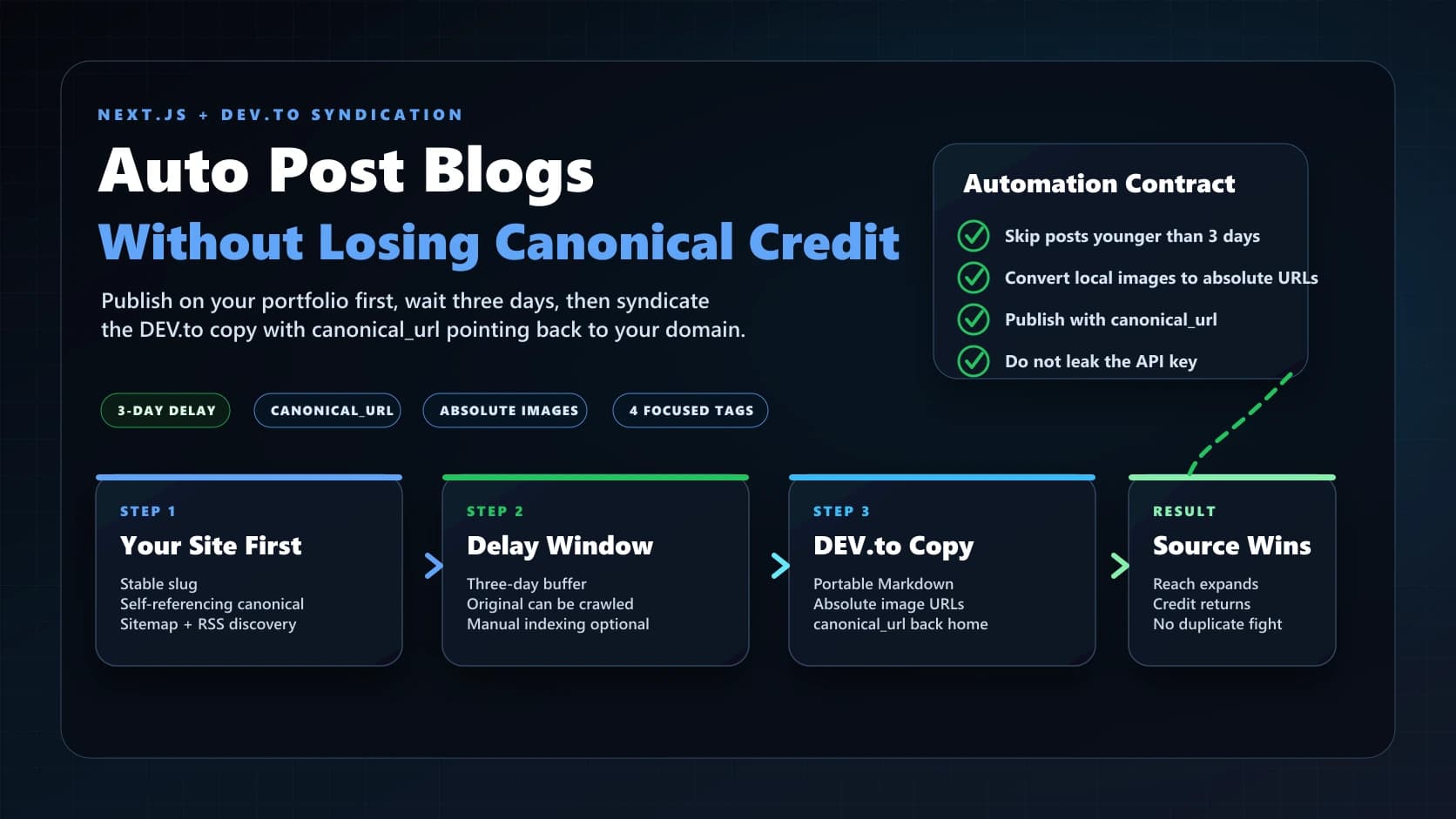
Publish First, Syndicate Later: Automating Dev.to Without Losing SEO Credit
Automate Next.js portfolio blog syndication to Dev.to with images, four tags, a three-day delay, and canonical URLs.

Syndicating Your Personal Portfolio Blog to Dev.to Without Losing SEO Credit
Learn how to syndicate portfolio blog posts to Dev.to with RSS, canonical links, and a workflow that protects original SEO value.